How to turn a PDF or Word file of multiple-choice questions into a timed practice test
You have questions in a file: a class handout, a past paper, a study group’s document, an export from a bank you paid for. This guide takes them into DoMcq exactly as written and starts a timed session on them.
Your own AI does the copying. DoMcq runs no AI: it checks the file your AI writes and never changes a question. You need a free DoMcq account and an account with ChatGPT, Claude or Gemini.
1 Open the prompt page in convert mode
Go to domcq.com/prompts?mode=convert and pick the exam your questions are for, so that each question is filed under one of its official topics. For any other exam, course or subject, pick Build a prompt for your own subject, type the subject and your topics, and choose Convert questions I already have under Your prompt.
On an exam’s prompt page, check that Convert questions I already have is the choice under What do you want your AI to do?.
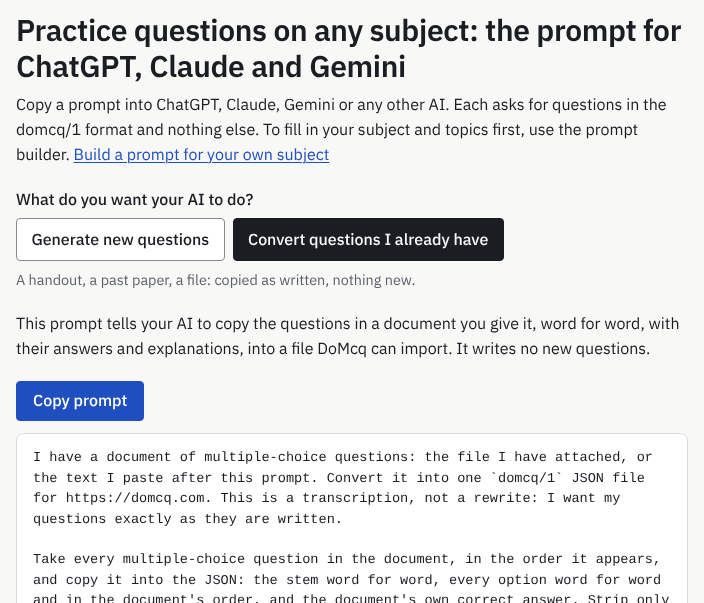
What you will see: The prompt page with Convert questions I already have selected, a note on what the prompt does, Copy prompt, and the prompt itself. This is the page for any subject; an exam’s page looks the same, with the exam’s name at the top. 2 Copy the prompt
Press Copy prompt. If your browser does not allow it, the page says “Copying is blocked in this browser. Select the text and copy it by hand.”
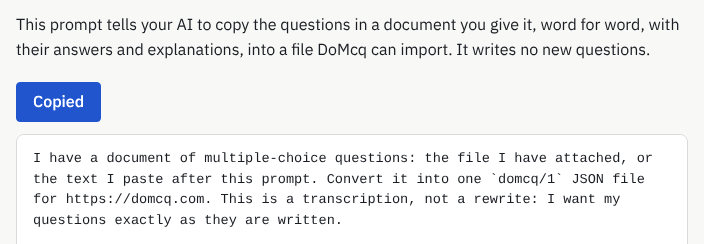
What you will see: The button reads Copied for a moment: the prompt is on your clipboard. 3 Open your AI and attach the file
Open ChatGPT, Claude or Gemini and start a new chat. Attach your file with the paperclip: a Word file, a PDF, or photos of the pages. If your AI has no paperclip, open the document, copy its text and paste that into the chat instead.
This step and the next two happen in your AI. Its screens are not DoMcq’s and change often, so they have no pictures here.
4 Paste the prompt and send
Paste the prompt into the same message as the file, and send. The prompt asks for every question exactly as written, in the document’s order, with the document’s own answers and explanations, and nothing else in the reply.
Wait for the whole reply. It is one block of JSON; most AIs show it in a box with a copy button of its own.
5 If the reply stops early, ask for the rest
A long document can be cut off before the end. Reply “continue from question N”, where N is the first question that is missing; “the AI then sends the rest as a second file”. Its set name ends in
(from question N).Import each file on its own. Each one becomes a set, and the sets can be practiced together. For a document of hundreds of questions, Hundreds of questions shows how to ask for 20 at a time from the start.
6 Paste the whole reply at Import
Copy the whole reply, or use the copy button on the box. Both work: DoMcq accepts the JSON with or without the code fence around it.
In DoMcq, open Import in the header. On Import questions, paste into Your domcq/1 file, or save the reply as a .json file and use Choose a .json file. DoMcq checks the file in your browser as soon as it is pasted. “Nothing is sent until you press Save.”
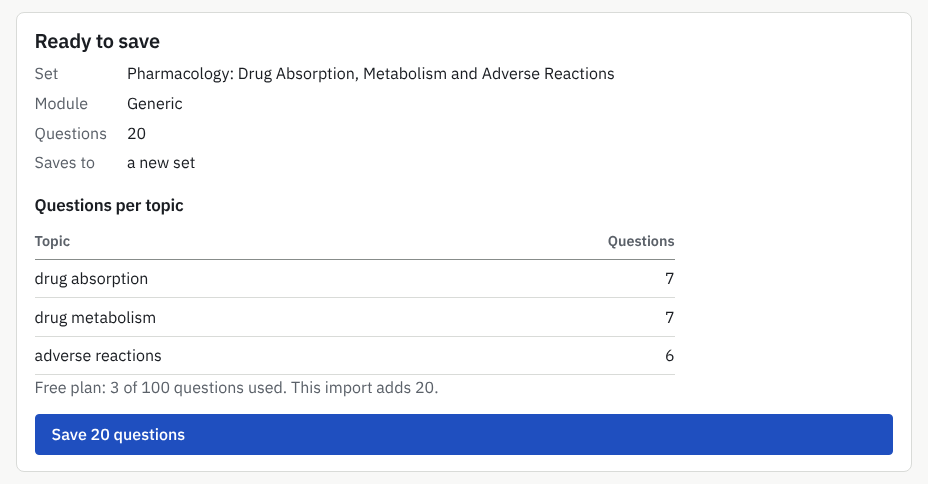
What you will see: Ready to save: the set’s name, the module, how many questions, where they will be saved, Questions per topic, and the Save button with the count on it. The file here is a real AI reply, used as the example. 7 If DoMcq lists problems, paste them back to your AI
If the file breaks a rule, DoMcq says 1 problem to fix (or how many) and lists them all, problems with the file as a whole first, then by question number, for example:
“Question 7: `source` is a string of 214 characters but must be a string of 1–200 characters, or omitted.”
“DoMcq doesn’t change your questions, so these need fixing by the AI that wrote them.” Under Ask your AI to fix it, press Copy fix request, paste it into the same chat with your AI and send. The AI replies with the whole file, corrected. Copy that reply, press Clear on DoMcq’s import page, and paste the new one.
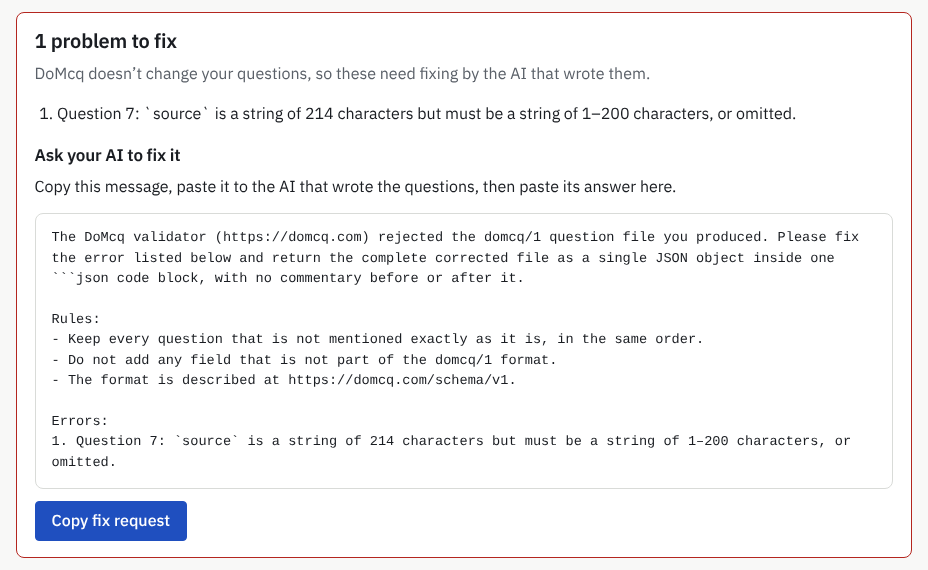
What you will see: 1 problem to fix, the message, and under Ask your AI to fix it the fix request with Copy fix request. 8 Save
When the page says Ready to save, check the set’s name and the number of questions, then press the Save button, which names the count: Save 20 questions. DoMcq says Saved and names the new set.
A question that is already in your account is skipped by default, not saved twice; Hundreds of questions explains how.
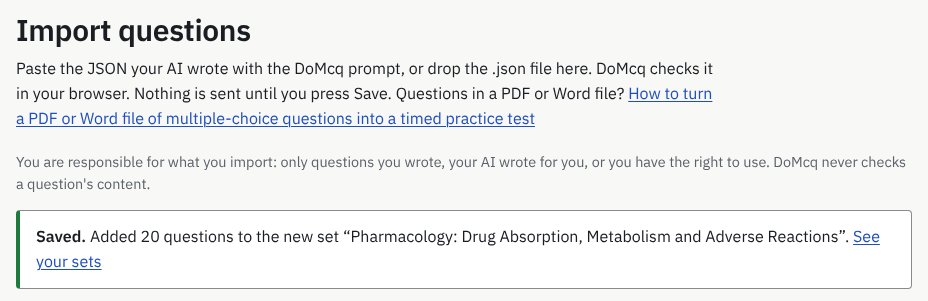
What you will see: Saved, how many questions went into which set, and See your sets. 9 Start a session
Open Practice in the header. Under Sets, tick the new set. Under Mode, choose Tutor to “See the answer and explanation after each question.”, or Exam for the timed version: “No feedback until you submit.”
For an exam’s module, exam mode keeps the real exam’s pace for however many questions you choose, and the page shows the minutes. For any other subject, set Questions and type the minutes for them in Minutes (leave empty for no clock). Then press Start.
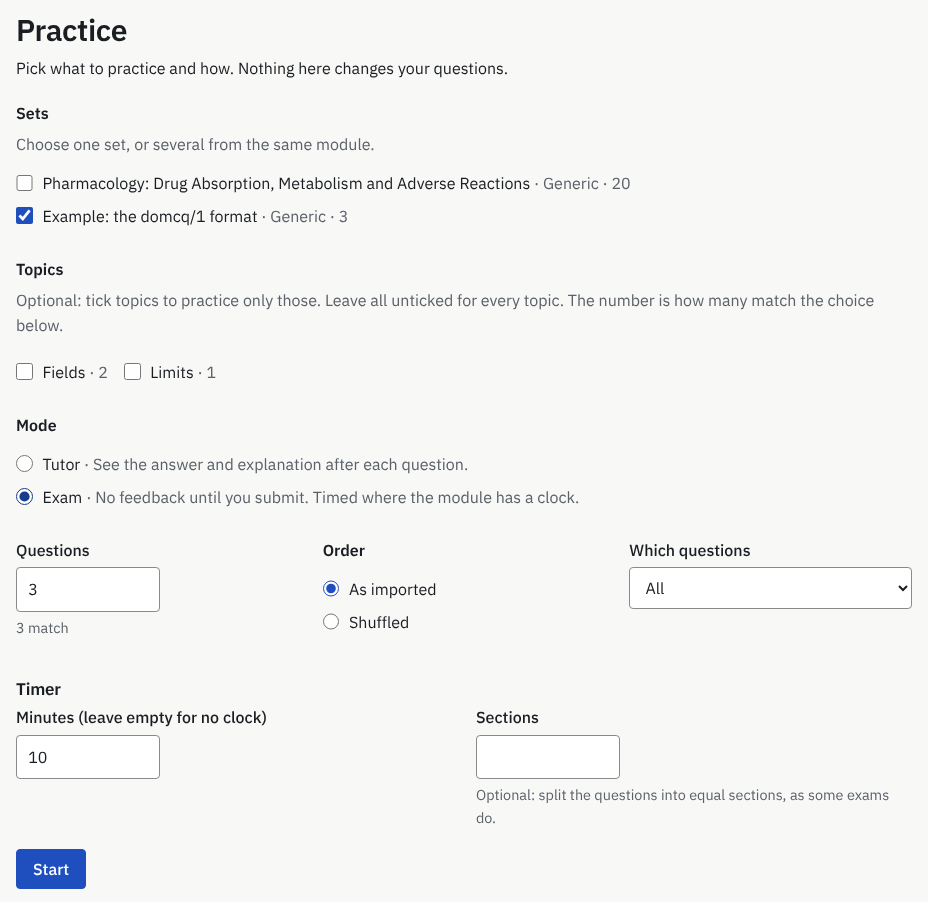
What you will see: Your sets with tick-boxes, Topics, Mode, Questions, Order, Which questions, Timer and Start, set here for an exam session of the example set’s 3 questions in 10 minutes. 10 Answer the questions
In tutor mode, choose an option and press Check answer. DoMcq says “Correct.” or gives the right letter, then shows the explanation in your file. Next moves on; Flag marks a question to come back to.
In exam mode there is no verdict until you press Submit. The results page then shows your score by topic and every question with your answer.
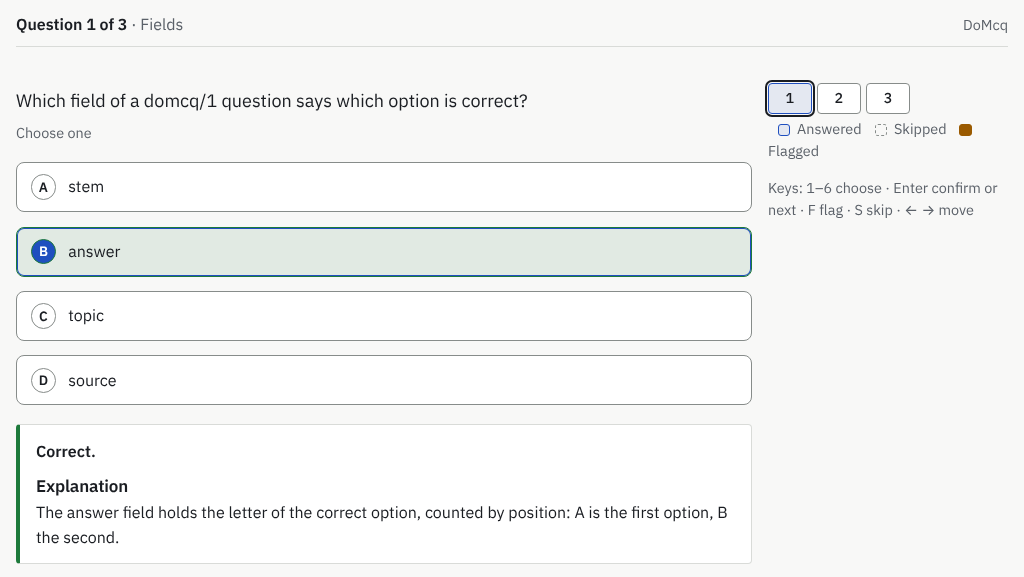
What you will see: One of the example questions in tutor mode after Check answer: the verdict, then the explanation.


What if…
- The PDF is a scan, or photos of pages?
- ChatGPT, Claude and Gemini read images, so a scan or photos usually work. If the AI says it cannot read the file, ask it to “read the text on these pages first”, then send the prompt. If the scan is too poor to read, typing the questions into the chat works too.
- There is no answer key?
- The AI chooses each answer itself and marks the question’s source “answer by AI”, so you can tell its answers from your document’s. DoMcq imports the file anyway and never supplies or checks an answer. I have questions but no answer key covers checking and correcting them.
- The answers are in a separate file?
- Attach both files to the same message, the questions and the answers. If your AI takes one file at a time, attach the questions and paste the text of the answer key under the prompt. If the key gives answers without explanations, the AI writes a one-sentence explanation for each and marks its source “answer key only”.
- There are more than 20 questions?
- An AI tends to stop partway through a long reply. Add “Convert questions 1 to 20 only.” at the end of the prompt, import that file, then ask for 21 to 40 as a new file, and so on. Each file becomes a set; Hundreds of questions has the details.
- The AI rewrote a question?
- The prompt asks for a transcription, word for word, but an AI can still slip. Before you import, tell it which question differs from your document and ask for the whole file again with that question exactly as written.
- After you import, you can correct a question yourself: on a session’s results page, under Review, press Edit question. “DoMcq stores exactly what you type” and never corrects your text.
- A question needs a picture, a diagram or a chart?
- A DoMcq question is plain text, so the AI leaves out any question that depends on a picture. Ask it “which question numbers did you skip?” to see which ones. A table printed as text is copied into the question as text.
- The import says the free limit is reached?
- A free account holds up to 100 questions across all its sets. An import that would go past that is refused whole, and the page says how many fit: “A free account holds up to 100 questions”, then what you have and what the file adds. Remove questions from the file, delete a set you no longer need, or get the pass that covers the file: the Exam Pass for its exam, the Any Exam Pass for any other subject, or All-Access (Pricing). Nothing you saved before is touched.
More guides
DoMcq runs no AI. It never writes, fixes or explains questions; your AI does the writing, DoMcq makes the questions count.