I have questions but no answer key
Plenty of question documents come without answers: a past paper without its answer key, a list a classmate typed up. The convert prompt still turns them into a file DoMcq can import, and it marks every answer that did not come from your document.
DoMcq itself never supplies, checks or corrects an answer. It runs no AI: every answer in a file came from your document or from your AI, and the file says which.
1 Copy the convert prompt
Open your exam’s prompt page from domcq.com/prompts?mode=convert, or the prompt builder for any other subject, choose Convert questions I already have and press Copy prompt.
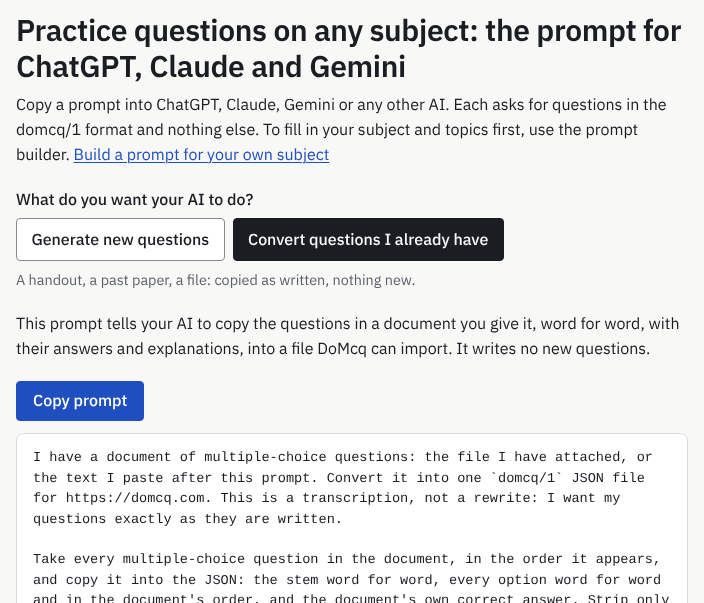
What you will see: The prompt page with Convert questions I already have selected, a note on what the prompt does, Copy prompt, and the prompt itself. This is the page for any subject; an exam’s page looks the same, with the exam’s name at the top. 2 Attach your document and send
In ChatGPT, Claude or Gemini, attach the document, paste the prompt and send. The prompt tells your AI what to do in each case, and to mark which is which in each question’s source:
- Answers and explanations in the document: both copied as written.
- Answers but no explanations (an answer key only): the AI writes a one-sentence explanation for each question and ends its source with
; answer key only, “so you know which explanations are the document’s and which are not.” - No answers at all: the AI chooses the answer itself, writes a one-sentence explanation, and ends the source with
; answer by AI. “DoMcq imports it anyway.”
An explanation is never left empty, so no question is refused for lacking one. Questions that cannot be copied faithfully are still left out, as in the PDF guide: one that depends on a picture, or one that does not fit the exam’s question format.
3 Import the file
Paste the reply at domcq.com/import and save it, as in the PDF guide. DoMcq checks the file’s shape only; an answer the AI chose looks like any other answer.
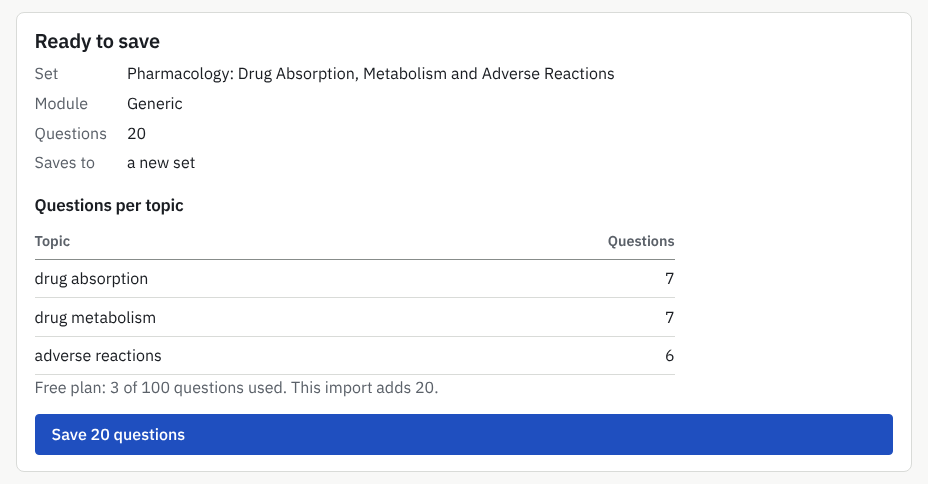
What you will see: Ready to save: the set’s name, the module, how many questions, where they will be saved, Questions per topic, and the Save button with the count on it. The file here is a real AI reply, used as the example. 4 Check the AI’s answers in tutor mode
“Check those answers in tutor mode”: start a Tutor session on the set, answer, and press Check answer to see the answer and the explanation. On the results page, Review shows each question’s source, so you can see which answers are marked as the AI’s.
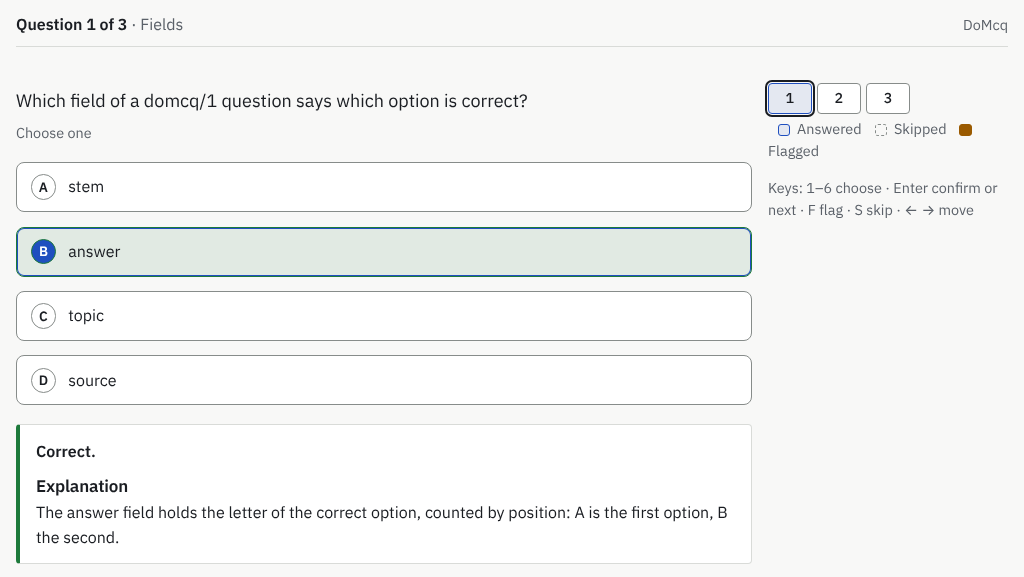
What you will see: One of the example questions in tutor mode after Check answer: the verdict, then the explanation. 5 Correct an answer you disagree with
Under Review on the results page, press Edit question on the question. Change Correct answer (letters, e.g. B or BD) and the Explanation, and the Source (optional) if you want to drop the marker, then press Save. “DoMcq stores exactly what you type”, after the same check as an import.
Your past session keeps the question as it was answered: “Saved as a new version. This attempt still shows the version you answered; your next attempt uses the new one.”
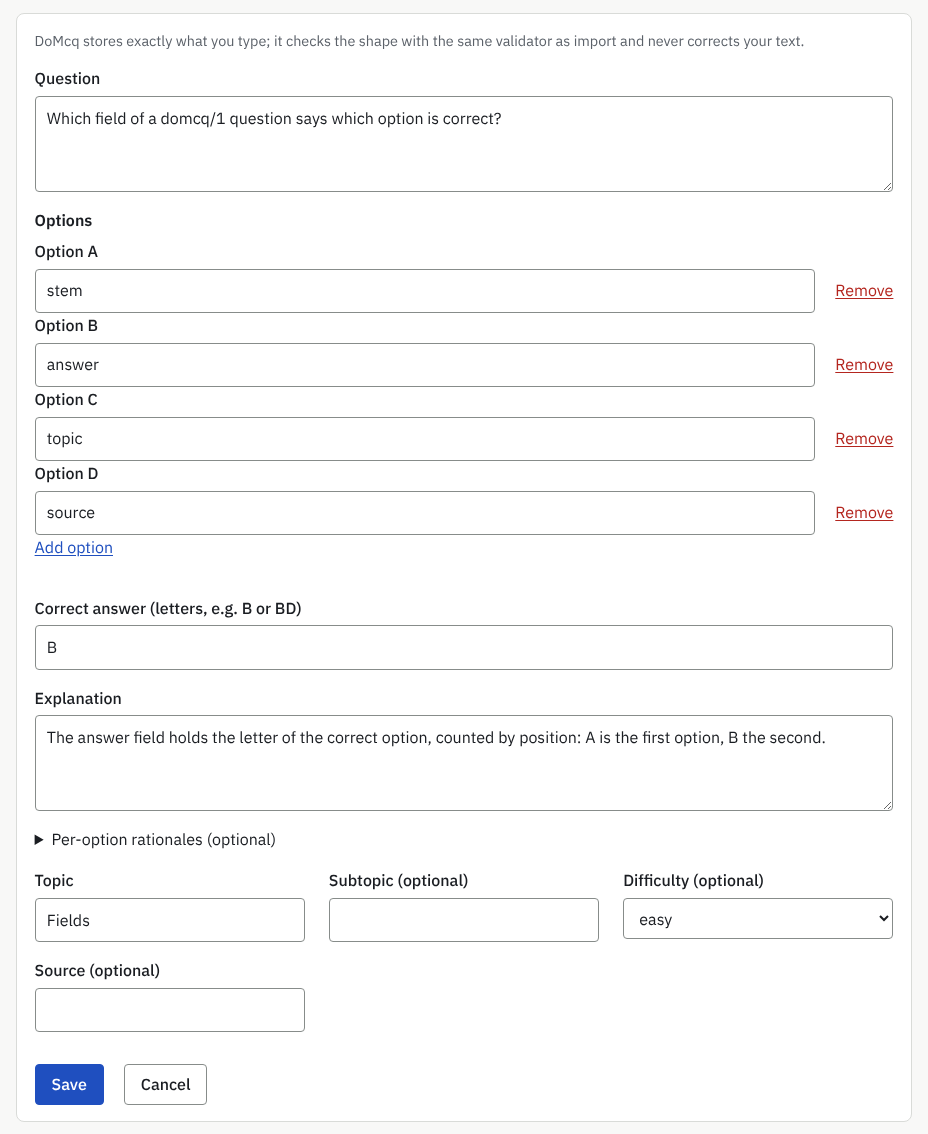
What you will see: The edit form under Review: the question, the options, Correct answer (letters, e.g. B or BD), Explanation and Save.


Why DoMcq does not add answers
DoMcq runs no AI and holds no questions of its own, so it has no answers to give. An answer marked answer by AI is your AI’s attempt, not your document’s and not DoMcq’s. Check it against your own materials, or ask whoever wrote the questions.
More guides
- How to turn a PDF or Word file of multiple-choice questions into a timed practice test
- Export, back up and delete your questions
DoMcq runs no AI. It never writes, fixes or explains questions; your AI does the writing, DoMcq makes the questions count.