How to have ChatGPT, Claude or Gemini write practice questions for your exam, and practice them on the real clock
Every exam with a DoMcq module has a prompt page. Its prompt gives your AI the exam’s official topic list, the topic weights where the exam body publishes them, and the real exam’s question format, and asks for a file DoMcq can import. Your AI writes the questions; DoMcq checks the file and gives you tutor mode, exam mode at the real exam’s pace, and your results by topic.
DoMcq runs no AI and writes nothing. Everything below happens in your own AI account and your own DoMcq account.
1 Open your exam’s prompt page and set the two controls
Go to domcq.com/prompts and pick your exam. The page opens with Generate new questions chosen. No exam on the list? Practicing for an exam DoMcq does not list explains the prompt builder.
Questions is how many questions to ask for, 20 by default. “Twenty at a time is a safe size; an AI often cuts a longer file short.” For more, run the prompt again.
Include per-option rationales asks for one more sentence per option: “A sentence per option saying why it is right or wrong, shown under each option in tutor mode. Roughly doubles the reply, so it is off by default.”
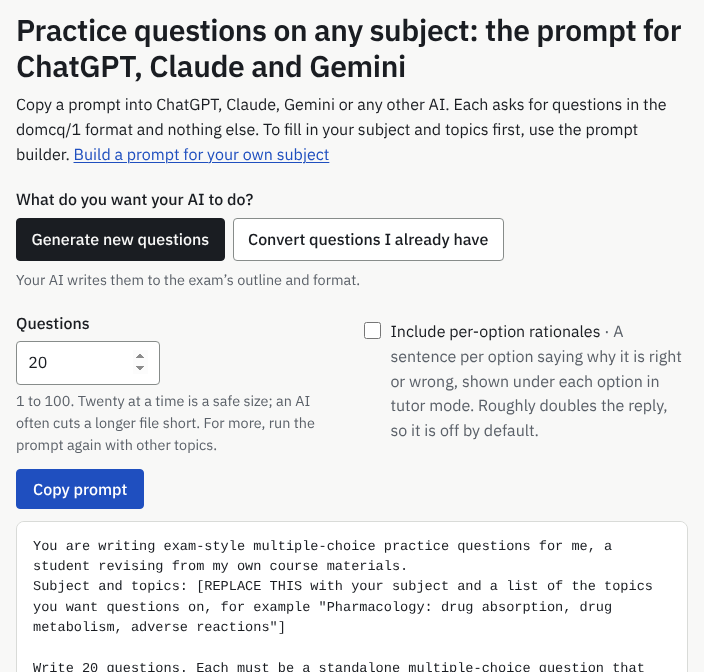
What you will see: Generate new questions selected, Questions at 20, the Include per-option rationales tick-box, Copy prompt and the prompt. 2 Copy the prompt and send it to your AI
Press Copy prompt, open ChatGPT, Claude or Gemini, start a new chat, paste and send. The reply is one block of JSON. “If it stops early, ask it to continue from where it stopped and finish the JSON.”
3 Judge what came back
Read the questions before you rely on them. Your AI wrote them from the exam’s outline and its own knowledge; it can be wrong, out of date, too easy, or sure of an answer that is not the best one. Each question carries a
source, a reference you can check in your own materials.DoMcq checks only the file’s shape: the fields, the number of options, the topic names. It cannot tell a good question from a bad one, and it never fixes or explains one. If a set is poor, discard it and run the prompt again.
4 Import the reply
Copy the whole reply and paste it at domcq.com/import. “DoMcq checks the file and shows exactly what to fix, if anything, as a message you paste back to your AI.” When it says Ready to save, press the Save button. The PDF guide shows the fixing step in detail.
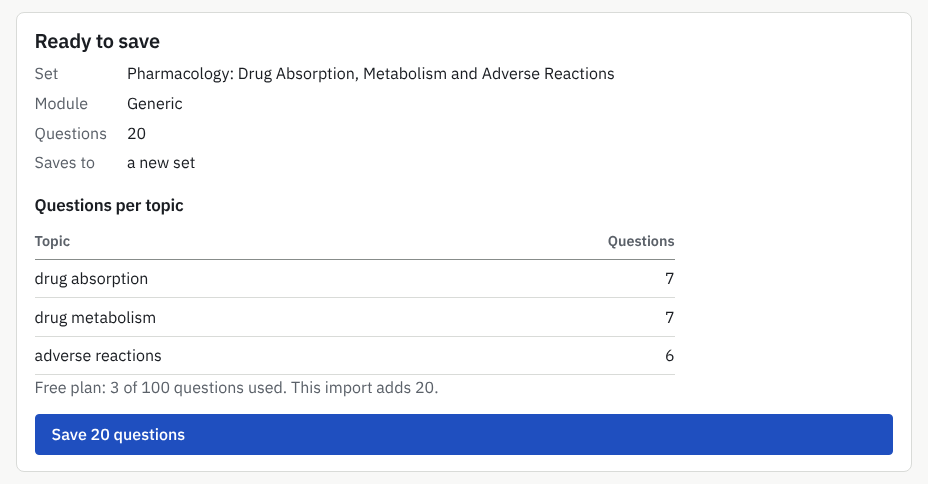
What you will see: Ready to save: the set’s name, the module, how many questions, where they will be saved, Questions per topic, and the Save button with the count on it. The file here is a real AI reply, used as the example. 5 Read what the module covers
Each exam’s module page is linked from its prompt page. Under What it covers, the first line says which questions DoMcq practices for that exam, for example “Covers: single-answer and multiple-answer multiple-choice questions written to this exam’s outline, format and timing.”
The second line starts “Does not cover:” and lists the real exam’s other kinds of item: “DoMcq is multiple-choice only; the real exam’s other item types are out of scope.” If those are part of your exam, practice them elsewhere.
Exam mode gives the real exam’s timing, or says so where DoMcq works out a pace because the real exam has no fixed length. Topics lists the official topics, with their weights where the exam body publishes them; “the coverage dashboard compares your set to each topic’s official weight.”
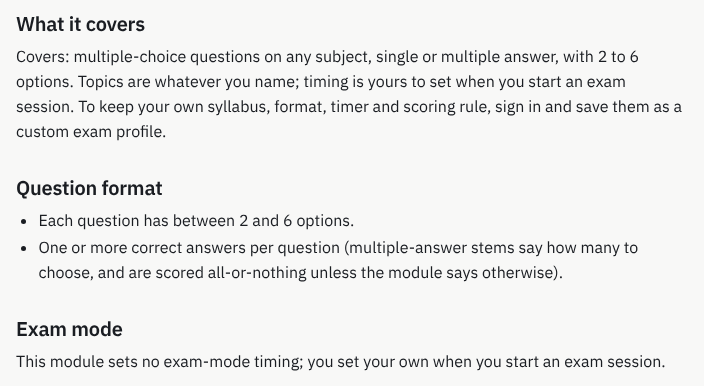
What you will see: What it covers, Question format and Exam mode. This is the module for any subject; an exam’s module adds “Does not cover:”, the real exam’s timing and the official topics, with their weights where the exam body publishes them. 6 Practice on the real clock
Open Practice, tick the set and choose Exam. Exam mode keeps the real exam’s pace for any number of questions, and the page works it out for you. For an exam of 100 questions in 120 minutes and a session of 20, it says “120 minutes for 100 questions, as on the exam. For 20 questions that is 24 minutes.” Press Start.
There is no verdict until you submit. With five minutes left the page says “5 minutes left.”; at zero it submits by itself, and “Unanswered and skipped questions score 0.”
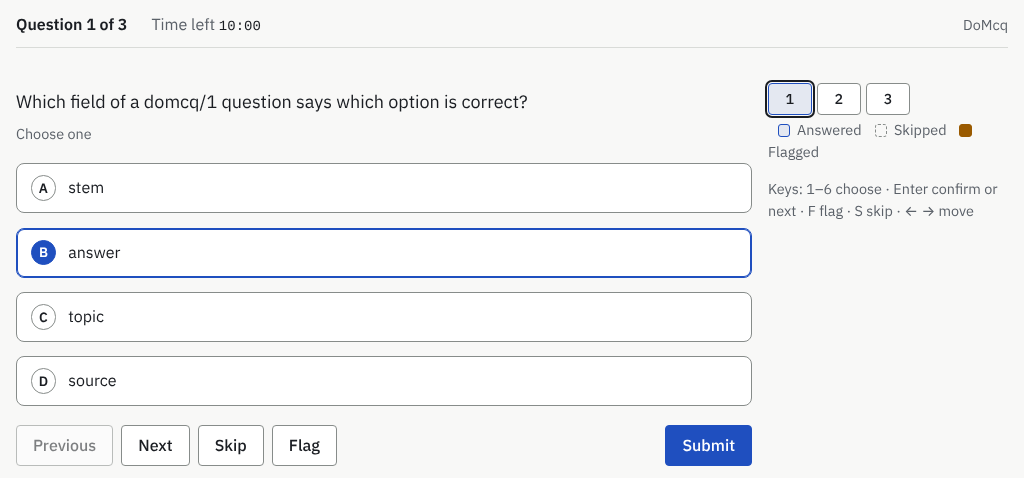
What you will see: Question 1 of 3, Time left, the options, Skip, Flag and the navigator. No verdict until you submit. 7 Read your results
After Submit, the results page shows Raw accuracy, a table By topic and a Review of every question with your answer. Practice the incorrect ones opens Practice with the same sets and Incorrect last time chosen. Over several sessions, the Dashboard shows your weak topics.
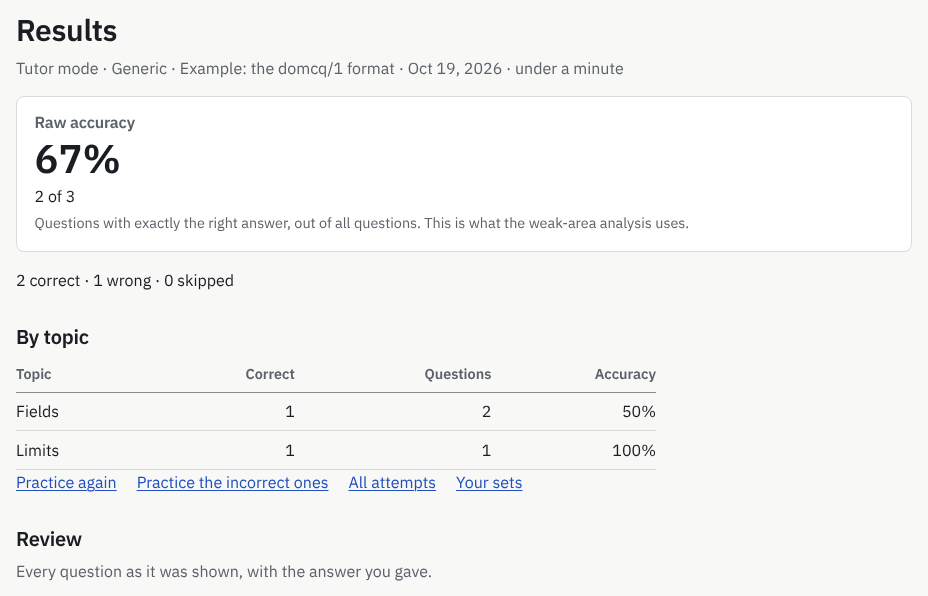
What you will see: Raw accuracy, the counts, By topic, and the start of Review.

How good are the questions?
They are as good as the AI that wrote them and your judgment in checking them, no better. DoMcq makes no claim about any AI, any question or any result: it gives the questions the real exam’s format, topics and clock, and shows you how you did.
If you already have questions written by people, such as a course’s question set or past papers, convert those instead.
More guides
- How to turn a PDF or Word file of multiple-choice questions into a timed practice test
- Practicing for an exam DoMcq does not list
- Hundreds of questions
DoMcq runs no AI. It never writes, fixes or explains questions; your AI does the writing, DoMcq makes the questions count.